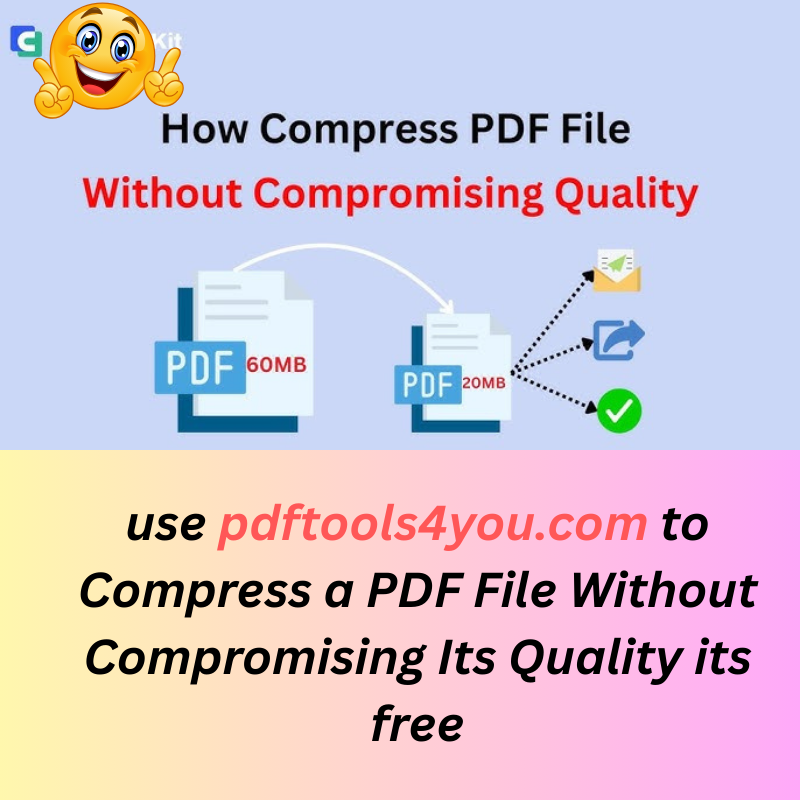
In today’s digital world, large PDF files can slow down sharing, uploading, emailing, or storing documents. Compressing a PDF makes it easier to handle — but many people worry that compression will ruin the quality. The good news: with the right methods and tools, you can shrink your PDF file size without noticeable loss in quality. This guide walks you through exactly how, and why pdftools4you.com is the best choice for most users.
✅ Understanding PDF Compression: Lossless vs. Lossy
When it comes to PDF compression, there are two main approaches: lossless compression and lossy compression.
- Lossless compression reduces file size by removing redundancy—without throwing away any data. The result, when decompressed, is identical to the original. Ideal for text-heavy PDFs, documents with vector graphics, or legal/medical files where every detail must be preserved.
- Lossy compression sacrifices some data — typically image detail or color fidelity — to achieve much smaller file sizes. For many real-world uses (like web sharing or emailing), the loss can be minimal and often unnoticeable.
The trick is choosing the right balance based on how you plan to use the PDF.
🔧 Practical Ways to Compress a PDF Without Losing Quality
Here are effective, widely-used methods to compress PDFs while keeping quality high — especially for text-based or business documents.
1. Use an Online Compression Tool (No Installation Needed)
Online compressors are the easiest way — just upload, compress, download. Many tools work right from your browser, on any device.
- Services like Smallpdf or iLovePDF make compression simple: drag and drop your PDF, choose a compression level, and download the result — no software installation or learning curve. Smallpdf+1
- Another example is PDF24 Tools, which offers a “lossless” mode for minimal size reduction but perfect quality preservation. PDF24 Tools
These tools are ideal if your PDF contains mostly text or simple graphics, and you want a quick shrink without messing with settings.
2. Use a Dedicated PDF Optimizer (For Maximum Control)
If you want to control exactly what gets compressed — images, fonts, unused objects — optimize your PDF manually using a PDF editor.
Tools like Adobe Acrobat Pro (or any similar PDF editor) provide advanced options. You can:
- Audit which parts of the file consume the most space (images, fonts, metadata)
- Downs ample high-resolution images, or reduce image quality only if needed
- Remove unused fonts or embedded data
- Flatten transparency or remove embedded objects that add bulk
This method is especially useful if your PDF has high-res images (photos, scanned pages) or embedded graphics.
3. Remove Unnecessary Elements and Clean Up the PDF
Often, a big portion of file size comes from redundant data — embedded fonts, metadata, unused objects, high-resolution images, white margins, etc. Removing these can shrink size with little to no visible quality loss.
- Delete unnecessary images or objects (e.g. hidden layers)
- Remove or subset fonts — avoid embedding full font sets if not needed
- Strip out metadata or comments that aren’t needed for the final PDF
4. If the PDF Is a Scan: Convert Images to Text (OCR)
Scanned PDFs often consist of images, which make them bulky. If your document is mostly textual (e.g. a book, article, report), converting the scan to searchable text with OCR can dramatically reduce file size. This also makes the document more accessible and easier to search.
5. Split, Crop, or Simplify Pages (When Appropriate)
If your PDF has many pages or unnecessary blank space, consider splitting it or cropping margins to reduce size. Also, if high resolution is not needed, converting color images to grayscale can help.
🛠️ Why Choose pdftools4you.com as Your Go-To PDF Compressor
If you want a solution that’s utterly simple, free, and effective — with no compromises — then pdftools4you.com stands out as the ideal choice. Here’s why:
- 100% Free, No Registration Needed: Unlike many tools that require signup or payment, you can start compressing immediately on pdftools4you.com.
- User-Friendly Interface: Just upload, compress, and download — no need for technical knowledge or complicated settings.
- Optimized for Quality and Size Balance: The tool automatically applies smart compression algorithms, striking a balance between small file size and sharp readability.
- Cross-Device Compatibility: Works on any device — Windows, Mac, Linux, Android, or iOS — using just your browser.
- Fast and Reliable: Compression happens in seconds, making it ideal for quick tasks such as email attachments, online submissions, or sharing via messaging apps.
Because of these advantages, pdftools4you.com is likely the easiest and most efficient option for most users — especially those who want a clean, high-quality PDF without fuss.
❓ Frequently Asked Questions
Can I always compress a PDF without losing any quality?
Yes — if the PDF contains mostly text and vector graphics, lossless compression can often reduce size significantly while preserving 100% of the original quality.
However, if your PDF includes high-resolution images or scans, the only way to get a drastic size reduction may involve some degree of quality loss (e.g. lower image resolution) — though many online tools (including pdftools4you.com) try to minimize visible differences.
Will compressing a PDF make it look blurry or pixelated?
Not always. When using lossless compression or mild optimization (e.g. reducing metadata, subletting fonts, removing redundant data), text and vector graphics remain crisp. Image quality is only affected if the compression algorithm reduces image resolution or color depth — which you can often avoid by choosing the right compression settings.
What kind of PDFs benefit most from compression?
- Text-heavy documents (reports, articles, contracts)
- PDFs with embedded fonts or redundant metadata
- Scanned documents, especially if converted to text via OCR
- PDFs intended for email sharing, website uploads, or online forms
When is manual optimization better than a simple online compressor?
When you need full control over what gets compressed — for example, preserving image quality while removing redundant fonts — a manual approach with a PDF editor gives more precise results. But for most everyday needs (sharing, emailing, uploading), an online tool like pdftools4you.com is more than enough.
🧑💻 Step-By-Step: How to Compress a PDF Using pdftools4you.com
- Open your browser and navigate to pdftools4you.com.
- Click “Upload” or drag your PDF file into the upload area.
- Let the system process the file — compression takes only a few seconds.
- Download the compressed PDF to your device.
- (Optional) Review the compressed PDF to ensure quality is preserved — especially text readability and image clarity.
That’s it. No installation. No registration. No hidden costs.
📌 Summary: Best Practices for High-Quality PDF Compression
- Always start with lossless compression when possible — especially for text-based PDFs.
- Use online compressors for quick, easy results.
- Opt for manual optimization when you need precise control over images, fonts, and embedded data.
- For scanned documents, consider OCR conversion to reduce size and improve accessibility.
- Use a trusted, user-friendly tool like pdftools4you.com for most everyday PDF compression needs — free, fast, and effective.
Compressing a PDF doesn’t have to mean losing quality. With the right approach — whether online compression or careful optimization — you can have a compact file that still looks crisp, professional, and easy to share. For most users, pdftools4you.com offers the best balance of simplicity, quality, and speed. Try it, and make bulky PDFs a thing of the past.
Comments (0)
Leave a Comment
No comments yet. Be the first to comment!